# TÉLÉCHARGER SYG-UTILITAIRES

<p class="callout info"><span style="color: rgb(0, 0, 0);">***<span style="font-size: 9.0pt; color: #323e4f; mso-themecolor: text2; mso-themeshade: 191;">Selon la version QGIS utilisée, assurez-vous d’utiliser les bonnes versions d’extension. Les </span>**<span style="font-size: 9.0pt; color: #323e4f; mso-themecolor: text2; mso-themeshade: 191;">versions QGIS 3.16.4 et plus nécessite l'extension SYG-</span>**<span style="font-size: 9.0pt; color: #323e4f; mso-themecolor: text2; mso-themeshade: 191;">PLS pour Python 3.9. Les versions </span>**<span style="font-size: 9.0pt; color: #323e4f; mso-themecolor: text2; mso-themeshade: 191;">QGIS, antérieur à 3.16.4 nécessite l'extension SYG-PLS pour Python 3.7.</span>***</span></p>

### **<span style="color: rgb(0, 0, 0);">Connexion et téléchargement</span>**

1. <span style="color: rgb(0, 0, 0);">Rendez-vous sur le site Internet du Groupe SYGIF pour récupérer l’application et cliquez sur l’**Espace client** dans le menu produits : *[https://sygreflex.groupesygif.ca/espace/login](https://sygreflex.groupesygif.ca/espace/login)* </span><span style="color: rgb(0, 0, 0);">*[![image.png](https://doc.groupesygif.ca/uploads/images/gallery/2026-03/scaled-1680-/image.png)](https://doc.groupesygif.ca/uploads/images/gallery/2026-03/image.png)*</span><span style="color: rgb(0, 0, 0);">  
    </span>
2. <span style="color: rgb(0, 0, 0);">Dans la fenêtre de<span style="mso-bidi-font-size: 9.0pt; font-family: 'Open Sans',sans-serif; mso-bidi-font-family: 'Times New Roman'; mso-bidi-font-style: normal;"> </span>connexion, entrez votre **identifiant** et votre **mot de passe**.  
      
    </span>![Capture d’écran 2026-03-10 141047.png](https://doc.groupesygif.ca/uploads/images/gallery/2026-03/scaled-1680-/capture-decran-2026-03-10-141047.png)  
    <span style="color: rgb(0, 0, 0);">  
    </span>
3. <span style="color: rgb(0, 0, 0);">Repérer l’application **SYG-Utilitaires** dans votre **Espace client** et cliquer sur le bouton "**Télécharger**".</span>  
      
    ![image.png](https://doc.groupesygif.ca/uploads/images/gallery/2026-03/scaled-1680-/7IMimage.png)

### **<span style="color: rgb(0, 0, 0);">Installation de SYG-UTILITAIRES</span>**

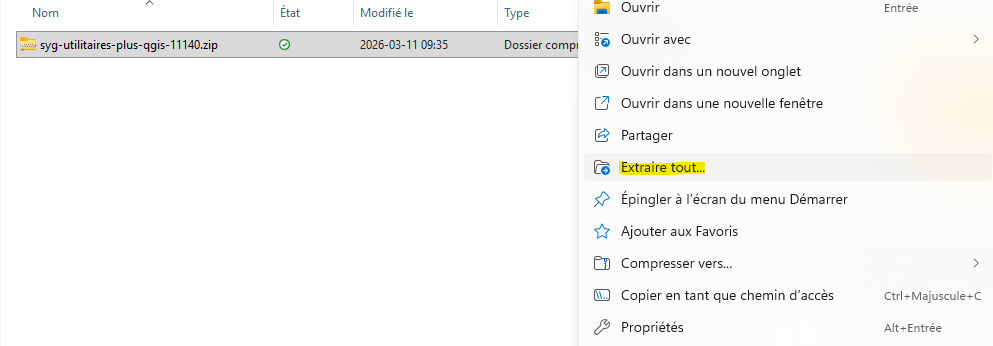
1. <span style="font-family: -apple-system, BlinkMacSystemFont, 'Segoe UI', Oxygen, Ubuntu, Roboto, Cantarell, 'Fira Sans', 'Droid Sans', 'Helvetica Neue', sans-serif; font-size: 14px; font-style: normal; font-variant-ligatures: normal; font-variant-caps: normal; font-weight: 400; color: rgb(0, 0, 0);">Le fichier ***syg-utilitaires-plus-qgis-1.x.***</span><span style="mso-bookmark: _Hlk90039507;"><span style="color: rgb(0, 0, 0);">***x.x.x.zip*** s'ouvre.</span>  
    <span style="color: rgb(0, 0, 0);">Il est important d'extraire le fichier sur votre poste de travail avant de continuer.</span>  
      
    </span>[![image.png](https://doc.groupesygif.ca/uploads/images/gallery/2026-03/scaled-1680-/IWeimage.png)](https://doc.groupesygif.ca/uploads/images/gallery/2026-03/IWeimage.png)
2. <span style="color: rgb(0, 0, 0);">Ouvrir l'**Explorateur de fichiers** et allez dans le dossier extrait.</span>  
    <span style="color: rgb(0, 0, 0);">Repérer le fichier **Installation.cmd**, faire un double clic sur le fichier.</span>  
      
    [![image.png](https://doc.groupesygif.ca/uploads/images/gallery/2026-03/scaled-1680-/nBkimage.png)](https://doc.groupesygif.ca/uploads/images/gallery/2026-03/nBkimage.png)
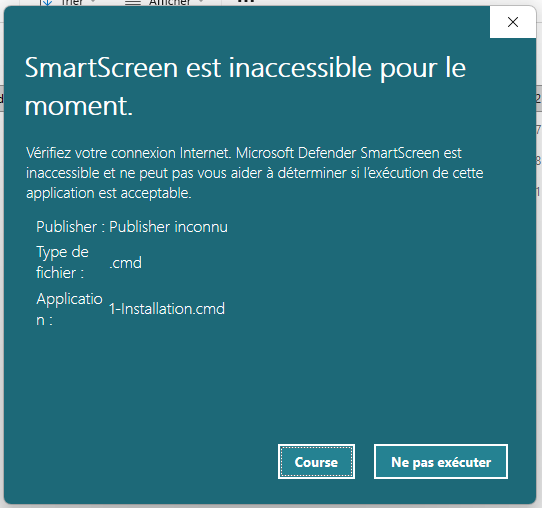
3. <span style="color: rgb(0, 0, 0);">Autoriser **Microsoft Defender SmartScreen** en cliquant sur **"Course"** ou **"Exécuter quand même"** selon les versions.</span>  
      
    [![image.png](https://doc.groupesygif.ca/uploads/images/gallery/2026-03/scaled-1680-/nDQimage.png)](https://doc.groupesygif.ca/uploads/images/gallery/2026-03/nDQimage.png)
4. <span style="color: rgb(0, 0, 0);">Une fenêtre d'installation s'ouvre, entrez **O** (**Oui**) afin de démarrer le script d’installation.</span>  
      
    <span style="font-size: 10.0pt; font-family: 'Open Sans',sans-serif; mso-fareast-font-family: 'Times New Roman'; mso-bidi-font-family: Arial; mso-ansi-language: FR-CA; mso-fareast-language: EN-US; mso-bidi-language: AR-SA; mso-bidi-font-style: italic;">![](https://doc.groupesygif.ca/uploads/images/gallery/2023-05/embedded-image-qfr9zwbc.png)  
      
    </span>
5. <span style="color: rgb(0, 0, 0);">Retournez dans le dossier d'installation et repérez ensuite le fichier **IniFile.exe**</span><span style="font-size: 10.0pt; font-family: 'Open Sans',sans-serif; mso-fareast-font-family: 'Times New Roman'; mso-bidi-font-family: Arial; mso-ansi-language: FR-CA; mso-fareast-language: EN-US; mso-bidi-language: AR-SA; mso-bidi-font-style: italic;">  
    </span>[![image.png](https://doc.groupesygif.ca/uploads/images/gallery/2026-03/scaled-1680-/CDwimage.png)](https://doc.groupesygif.ca/uploads/images/gallery/2026-03/CDwimage.png)
6. <span style="color: rgb(0, 0, 0);">Autoriser le fichier en cliquant "**Informations complémentaires**" puis sur "**Course**" ou "**Exécuter quand même**" selon les versions et double cliquez pour terminer l'installation de **SYG-Utilitaires**;</span><span style="font-size: 10.0pt; font-family: 'Open Sans',sans-serif; mso-fareast-font-family: 'Times New Roman'; mso-bidi-font-family: Arial; mso-ansi-language: FR-CA; mso-fareast-language: EN-US; mso-bidi-language: AR-SA; mso-bidi-font-style: italic;">  
    </span>

[![image.png](https://doc.groupesygif.ca/uploads/images/gallery/2026-03/scaled-1680-/ocyimage.png)](https://doc.groupesygif.ca/uploads/images/gallery/2026-03/ocyimage.png)

### **<span style="color: rgb(0, 0, 0);">Installation de QGIS</span>**

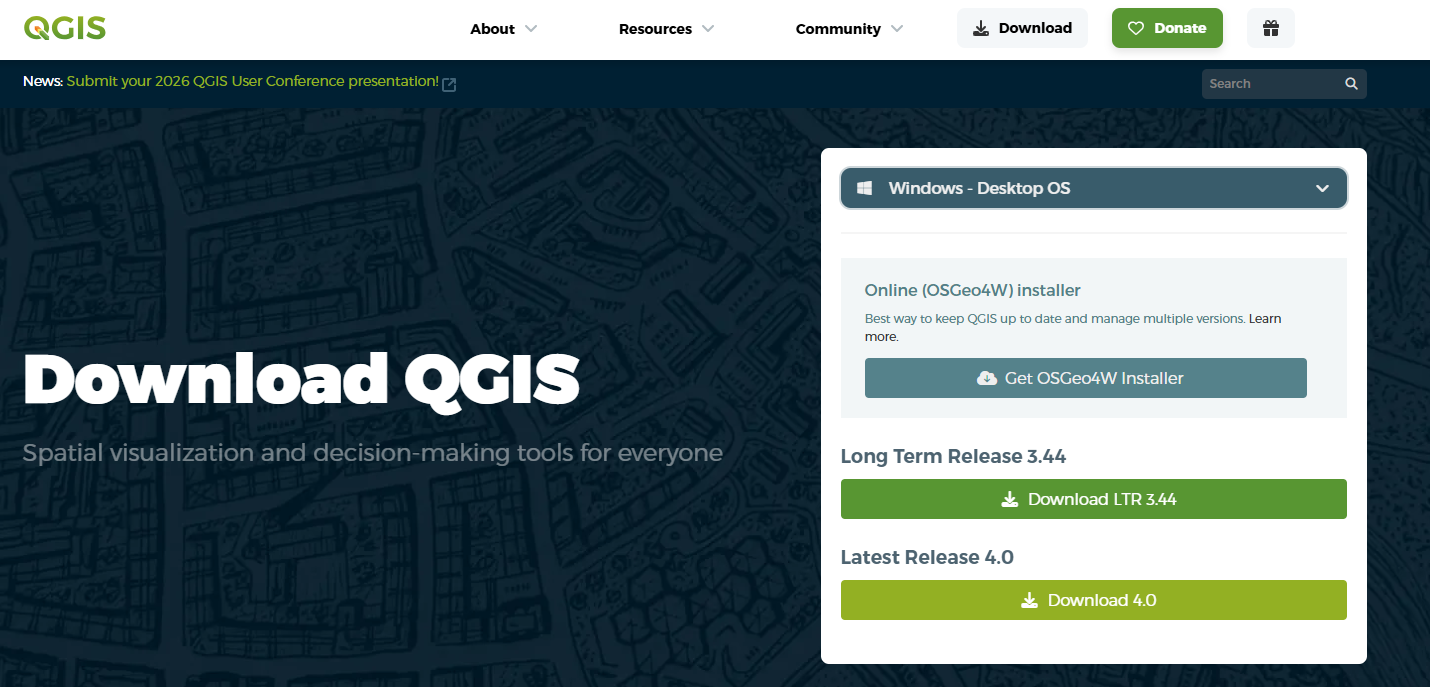
<span style="color: rgb(0, 0, 0);">Au préalable, installer **QGIS**. Nous préconisons la version la plus stable pour pouvoir supporter SYG-Utilitaires.  
*[https://qgis.org/download/](https://qgis.org/download/)*</span>

[![image.png](https://doc.groupesygif.ca/uploads/images/gallery/2026-03/scaled-1680-/lXGimage.png)](https://doc.groupesygif.ca/uploads/images/gallery/2026-03/lXGimage.png)

### **<span style="color: rgb(0, 0, 0);">Activer l'extension de SYG-UTILITAIRES dans QGIS</span>**

1. <span style="color: rgb(0, 0, 0);">Ouvrez **QGIS** et dans le menu **Extension** sélectionnez **Installer/Gérer les extensions**.  
      
    </span>[![image.png](https://doc.groupesygif.ca/uploads/images/gallery/2026-03/scaled-1680-/igvimage.png)](https://doc.groupesygif.ca/uploads/images/gallery/2026-03/igvimage.png)
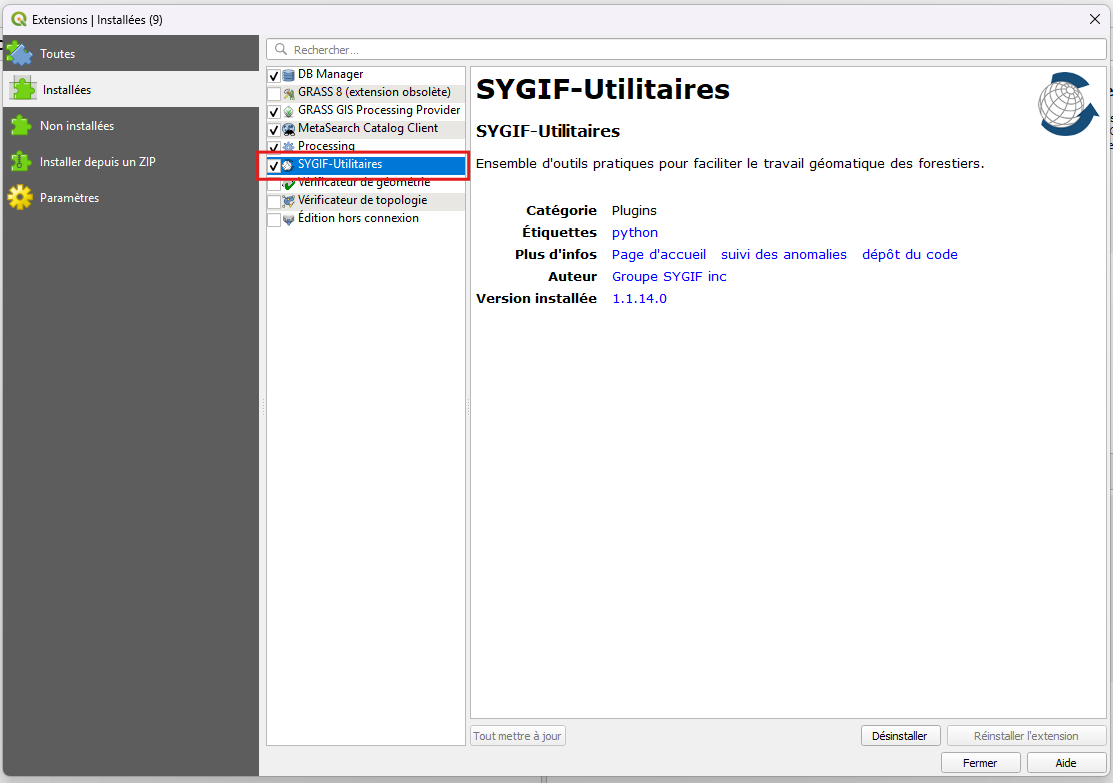
2. <span style="color: rgb(0, 0, 0);">Dans la fenêtre des extensions à l'option **Installées**, assurez-vous que l’extension **SYGIF-Utilitaires** sois cochée.  
      
    </span>[![image.png](https://doc.groupesygif.ca/uploads/images/gallery/2026-03/scaled-1680-/KKhimage.png)](https://doc.groupesygif.ca/uploads/images/gallery/2026-03/KKhimage.png)
3. <span style="color: rgb(0, 0, 0);">L’extension </span>**<span style="mso-bookmark: _Hlk90041783;"><span style="color: rgb(0, 0, 0);"><span style="mso-bidi-font-style: normal;">SYG-Utilitaires</span></span></span>**<span style="mso-bookmark: _Hlk90041783;"><span style="color: rgb(0, 0, 0);"><span style="mso-bidi-font-style: normal;"> </span></span></span><span style="mso-bookmark: _Hlk90041783;"><span style="color: rgb(0, 0, 0);">apparait maintenant dans la barre des outils.</span></span>

[![image.png](https://doc.groupesygif.ca/uploads/images/gallery/2026-03/scaled-1680-/Lczimage.png)](https://doc.groupesygif.ca/uploads/images/gallery/2026-03/Lczimage.png)

CONTACTER LE GROUPE SYGIF POUR PLUS DE RENSEIGNEMENTS - 418-721-5353- OU VISITER LE SITE WEB [GROUPESYGIF.CA](https://groupesygif.ca/)