# TÉLÉCHARGER SYG-PLS

<p class="callout info"><span style="color: rgb(0, 0, 0);">***<span style="font-size: 9pt;">Selon la version QGIS utilisée, assurez-vous d’utiliser les bonnes versions d’extension : la </span>**<span style="font-size: 9pt;">QGIS version 3.16.4 et plus *nécessite* l'extension SYG-</span>**<span style="font-size: 9pt;">PLS pour Python 3.9. La version </span>**<span style="font-size: 9pt;">QGIS, version antérieur à 3.16.4 *nécessite* l'extension pour Python 3.7.  
</span>***</span></p>

### <span style="color: rgb(0, 0, 0);">**Connexion et téléchargement**</span>


1. <span style="color: rgb(0, 0, 0);">Rendez-vous sur le site Internet du Groupe SYGIF pour récupérer l’application et cliquez sur l’**Espace client** dans le menu produits : *[https://groupesygif.ca/](https://groupesygif.ca/) ![image.png](https://doc.groupesygif.ca/uploads/images/gallery/2026-03/scaled-1680-/image.png)* </span>
2. <span style="color: rgb(0, 0, 0);">Dans la fenêtre de<span style="mso-bidi-font-size: 9.0pt; font-family: 'Open Sans',sans-serif; mso-bidi-font-family: 'Times New Roman'; mso-bidi-font-style: normal;"> </span>connexion, entrez votre **identifiant** et votre **mot de passe**;</span><span style="color: rgb(0, 0, 0);">  
      
    </span><span style="color: rgb(0, 0, 0);">![Capture d’écran 2026-03-10 141047.png](https://doc.groupesygif.ca/uploads/images/gallery/2026-03/scaled-1680-/capture-decran-2026-03-10-141047.png)</span>
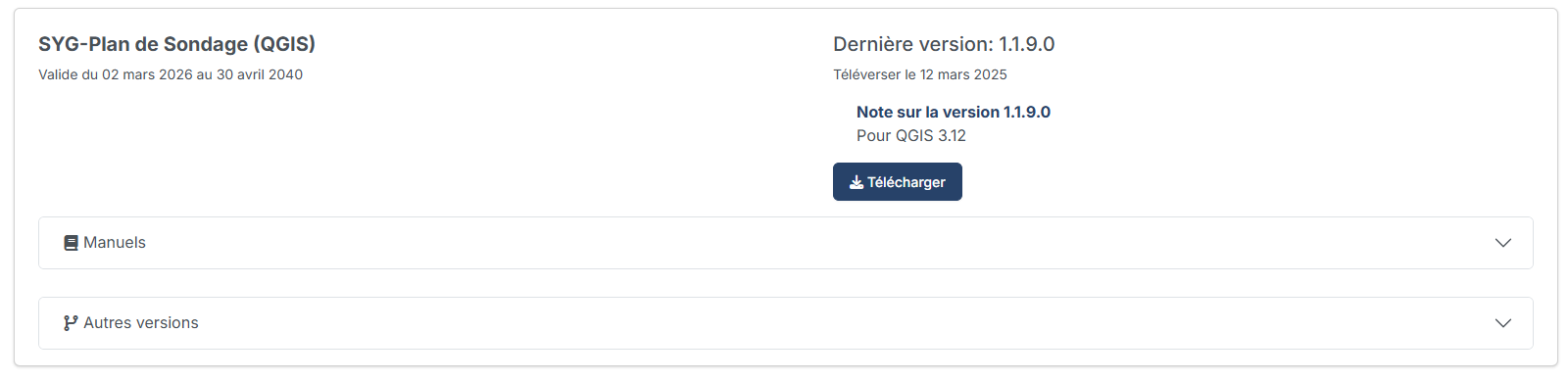
3. <span style="color: rgb(0, 0, 0);">Repérer l’application **SYG-PLS** dans votre **Espace client** et cliquer sur le bouton "**Télécharger**".  
    </span>  
    <span style="color: rgb(0, 0, 0);">[![image.png](https://doc.groupesygif.ca/uploads/images/gallery/2026-03/scaled-1680-/lZYimage.png)](https://doc.groupesygif.ca/uploads/images/gallery/2026-03/lZYimage.png)</span>
    
    <span style="font-size: 10pt; font-family: 'Open Sans', sans-serif; color: rgb(0, 0, 0);">  
    </span>

### <span style="color: rgb(0, 0, 0);">**Installation de SYG-PLS**</span>

1. <span style="color: rgb(0, 0, 0);"><span style="font-family: -apple-system, BlinkMacSystemFont, 'Segoe UI', Oxygen, Ubuntu, Roboto, Cantarell, 'Fira Sans', 'Droid Sans', 'Helvetica Neue', sans-serif; font-size: 14px; font-style: normal; font-variant-ligatures: normal; font-variant-caps: normal; font-weight: 400;">Le fichier ***syg-plan-de-sondage-qgis-1.x.x.x***</span><span style="mso-bookmark: _Hlk90039507;"> s'ouvre.  
    Il est important d'extraire le fichier sur votre poste de travail avant de continuer.  
      
    </span></span><span style="color: rgb(0, 0, 0);">[![image.png](https://doc.groupesygif.ca/uploads/images/gallery/2026-03/scaled-1680-/Xbfimage.png)](https://doc.groupesygif.ca/uploads/images/gallery/2026-03/Xbfimage.png)</span>
2. <span style="color: rgb(0, 0, 0);">Ouvrir l'**Explorateur de fichiers** et allez dans le dossier extrait.</span>  
    <span style="color: rgb(0, 0, 0);">Repérer le fichier **Installation.cmd**, faire un double clic sur le fichier.</span>  
      
    <span style="color: rgb(0, 0, 0);">[![image.png](https://doc.groupesygif.ca/uploads/images/gallery/2026-03/scaled-1680-/nBkimage.png)](https://doc.groupesygif.ca/uploads/images/gallery/2026-03/nBkimage.png)</span>
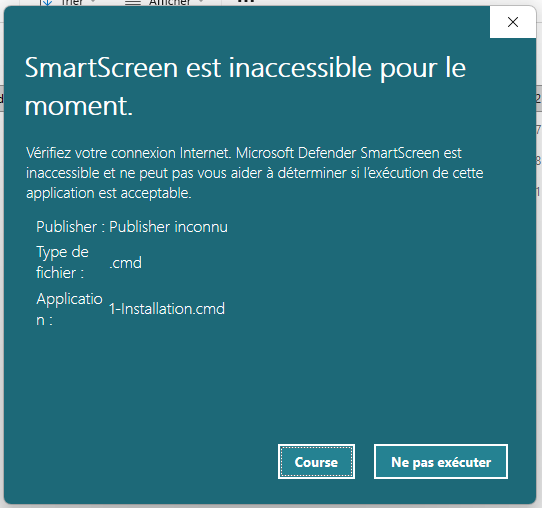
3. <span style="color: rgb(0, 0, 0);">Autoriser **Microsoft Defender SmartScreen** en cliquant sur **"Course"** ou **"Exécuter quand même"** selon les versions.</span>  
      
    <span style="color: rgb(0, 0, 0);">[![image.png](https://doc.groupesygif.ca/uploads/images/gallery/2026-03/scaled-1680-/nDQimage.png)](https://doc.groupesygif.ca/uploads/images/gallery/2026-03/nDQimage.png)</span>
4. <span style="color: rgb(0, 0, 0);">Une fenêtre d'installation s'ouvre, entrez **O** (**Oui**) afin de démarrer le script d’installation.</span>  
      
    <span style="font-size: 10pt; font-family: 'Open Sans', sans-serif; color: rgb(0, 0, 0);">![](https://doc.groupesygif.ca/uploads/images/gallery/2023-05/embedded-image-qfr9zwbc.png)  
      
    </span>
5. <span style="color: rgb(0, 0, 0);">Retournez dans le dossier d'installation et repérez ensuite le fichier **IniFile.exe**<span style="font-size: 10.0pt; font-family: 'Open Sans',sans-serif; mso-fareast-font-family: 'Times New Roman'; mso-bidi-font-family: Arial; mso-ansi-language: FR-CA; mso-fareast-language: EN-US; mso-bidi-language: AR-SA; mso-bidi-font-style: italic;">  
    </span>[![image.png](https://doc.groupesygif.ca/uploads/images/gallery/2026-03/scaled-1680-/CDwimage.png)](https://doc.groupesygif.ca/uploads/images/gallery/2026-03/CDwimage.png)</span>
6. <span style="color: rgb(0, 0, 0);">Autoriser le fichier en cliquant "**Informations complémentaires**" puis sur "**Course**" ou "**Exécuter quand même**" selon les versions et double cliquez pour terminer l'installation de **SYG-PLS**;<span style="font-size: 10.0pt; font-family: 'Open Sans',sans-serif; mso-fareast-font-family: 'Times New Roman'; mso-bidi-font-family: Arial; mso-ansi-language: FR-CA; mso-fareast-language: EN-US; mso-bidi-language: AR-SA; mso-bidi-font-style: italic;">  
    </span></span>

<span style="color: rgb(0, 0, 0);">[![image.png](https://doc.groupesygif.ca/uploads/images/gallery/2026-03/scaled-1680-/ocyimage.png)](https://doc.groupesygif.ca/uploads/images/gallery/2026-03/ocyimage.png)</span>

### <span style="color: rgb(0, 0, 0);">**Installation de QGIS**</span>

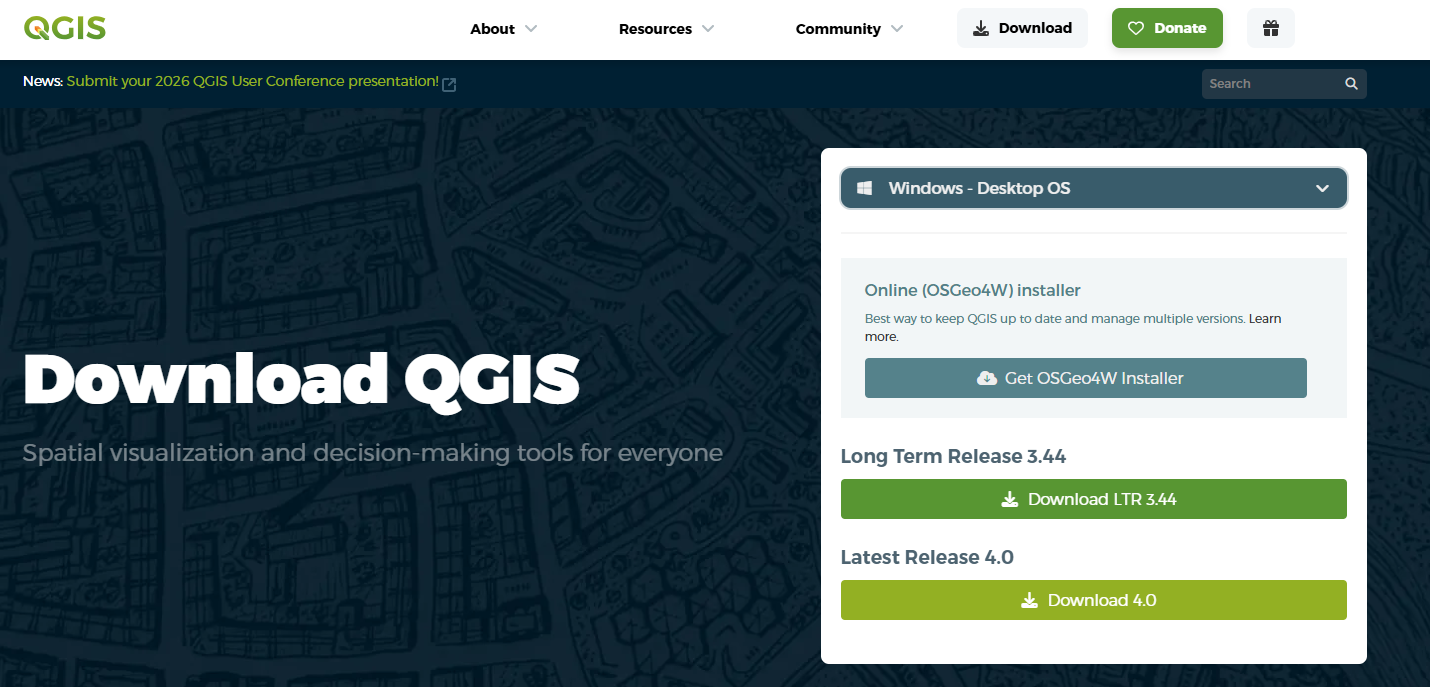
<span style="color: rgb(0, 0, 0);">Au préalable, installer **QGIS**. Nous préconisons la version la plus stable pour pouvoir supporter SYG-PLS.  
*[https://qgis.org/download/](https://qgis.org/download/)*</span>

<span style="color: rgb(0, 0, 0);">[![image.png](https://doc.groupesygif.ca/uploads/images/gallery/2026-03/scaled-1680-/lXGimage.png)](https://doc.groupesygif.ca/uploads/images/gallery/2026-03/lXGimage.png)</span>

### <span style="color: rgb(0, 0, 0);">**Activer l'extension de SYG-PLS dans QGIS**</span>

1. <span style="color: rgb(0, 0, 0);">Ouvrez **QGIS** et dans le menu **Extension** sélectionnez **Installer/Gérer les extensions**.</span>  
      
    <span style="color: rgb(0, 0, 0);">[![image.png](https://doc.groupesygif.ca/uploads/images/gallery/2026-03/scaled-1680-/igvimage.png)](https://doc.groupesygif.ca/uploads/images/gallery/2026-03/igvimage.png)</span>
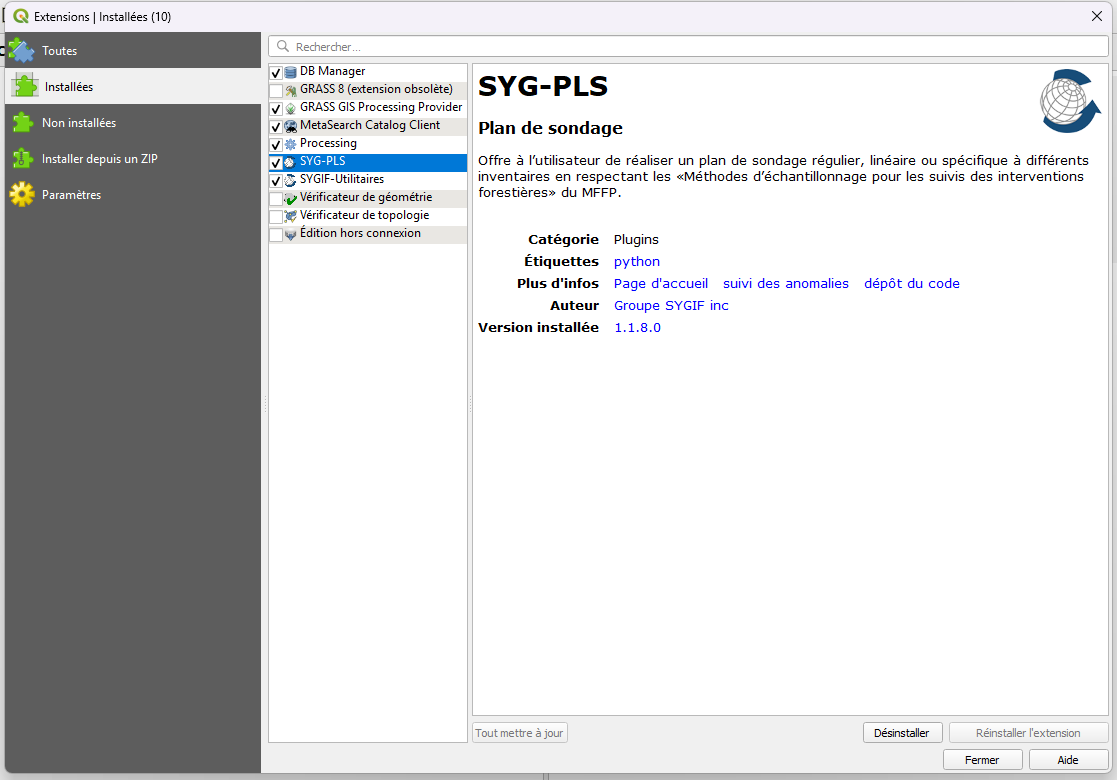
2. <span style="color: rgb(0, 0, 0);">Dans la fenêtre des extensions à l'option **Installées**, assurez-vous que l’extension **SYGIF-PLS** sois cochée.</span>  
      
      
    <span style="color: rgb(0, 0, 0);">[![image.png](https://doc.groupesygif.ca/uploads/images/gallery/2026-03/scaled-1680-/QIximage.png)](https://doc.groupesygif.ca/uploads/images/gallery/2026-03/QIximage.png)</span>
3. <span style="color: rgb(0, 0, 0);">L’extension <span style="mso-bidi-font-style: normal;">**SYG-PLS** </span>apparait maintenant dans la barre des outils.</span>

<span style="color: rgb(0, 0, 0);"><span style="mso-bookmark: _Hlk90041783;">[![image.png](https://doc.groupesygif.ca/uploads/images/gallery/2026-03/scaled-1680-/oqjimage.png)](https://doc.groupesygif.ca/uploads/images/gallery/2026-03/oqjimage.png)</span><span style="mso-bookmark: _Hlk90041783;">  
</span></span>