# VISUALISER L’APPLICATION CARNET ANDROID

Visualisation et interprétation des différents écran de saisies.

# Consulter par écran de saisie.

### Note: 

<p class="callout info"><span style="font-size: 10.0pt; line-height: 107%; color: windowtext;">L’application Android permet d’optimiser la saisie rapide sur le terrain, de nombreuses validations sont faites à même le carnet Android sur le terrain, ex. : Entrée obligatoire de certaines valeurs (fenêtre d’avertissement), type ou choix de valeurs qui sont à jour, etc. </span><span style="mso-bookmark: _Hlk110510462;"><span style="font-size: 10.0pt; line-height: 107%; color: windowtext;">InvenStock PC ne fait pas cette validation terrain et est volontairement conçu pour répondre à différents besoins/client. <span style="mso-spacerun: yes;"> </span>Nous vous conseillons fortement d’utiliser l’application Android plutôt que la saisie dans InvenStock PC. La retranscription de l’inventaire papier dans InvenStock PC directement peut occasionner des erreurs supplémentaires facilement évitables.<span style="mso-spacerun: yes;"> </span></span></span></p>

### <span style="mso-bookmark: _Toc512861500;"><span style="mso-bookmark: _Toc111540989;">Écran d'accueil</span></span><span style="mso-bookmark: _Toc111540989;"> principal</span>

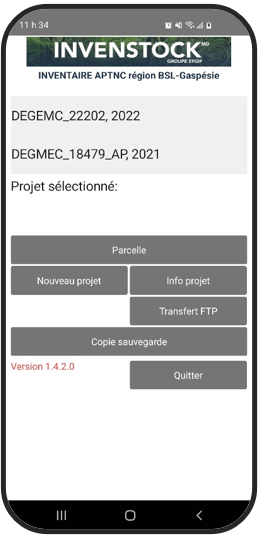
<span lang="FR" style="font-size: 10pt; line-height: 107%; color: rgb(0, 0, 0);">Voici l'écran d'accueil lorsque vous allez ouvrir l'application :</span>

[![image.png](https://doc.groupesygif.ca/uploads/images/gallery/2023-04/scaled-1680-/xv5image.png)](https://doc.groupesygif.ca/uploads/images/gallery/2023-04/xv5image.png)

<span style="color: rgb(0, 0, 0);"><span lang="FR" style="font-size: 10pt; line-height: 107%;"> </span><span lang="FR" style="font-size: 10pt; line-height: 107%;">Sélectionnez un projet en cliquant dessus dans la liste des projets et cliquez sur le bouton «Parcelle» pour démarrer l’inventaire. </span></span>

### <span style="color: rgb(0, 0, 0);">Écran Nouveau projet</span>

[![image.png](https://doc.groupesygif.ca/uploads/images/gallery/2023-04/scaled-1680-/Vogimage.png)](https://doc.groupesygif.ca/uploads/images/gallery/2023-04/Vogimage.png)

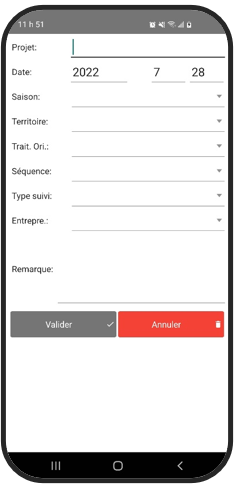
<span style="font-size: 10pt; line-height: 107%; color: rgb(0, 0, 0);">Faites « Nouveau » pour créer un nouveau projet, complétez les informations pour définir le projet. Ensuite, cliquez sur le bouton « Valider ». Puis, «Parcelle» pour débuter la prise de données.<span style="mso-no-proof: yes;"> </span></span>

### <span style="color: rgb(0, 0, 0);">Écran Info projet[![image.png](https://doc.groupesygif.ca/uploads/images/gallery/2023-04/scaled-1680-/7DBimage.png)](https://doc.groupesygif.ca/uploads/images/gallery/2023-04/7DBimage.png)</span>

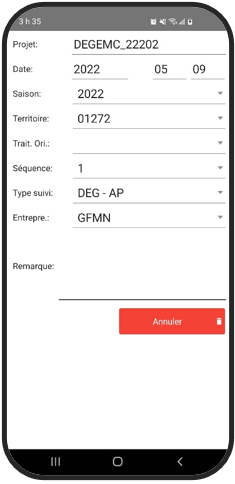
<span style="font-size: 10pt; line-height: 107%; color: rgb(0, 0, 0);">Faites « Info projet » pour visualiser les informations de base du projet sélectionné.</span>

### <span lang="FR" style="mso-ansi-language: FR; mso-fareast-language: FR-CA;">Écran Parcelle</span>

##### [![image.png](https://doc.groupesygif.ca/uploads/images/gallery/2023-04/scaled-1680-/Akgimage.png)](https://doc.groupesygif.ca/uploads/images/gallery/2023-04/Akgimage.png)

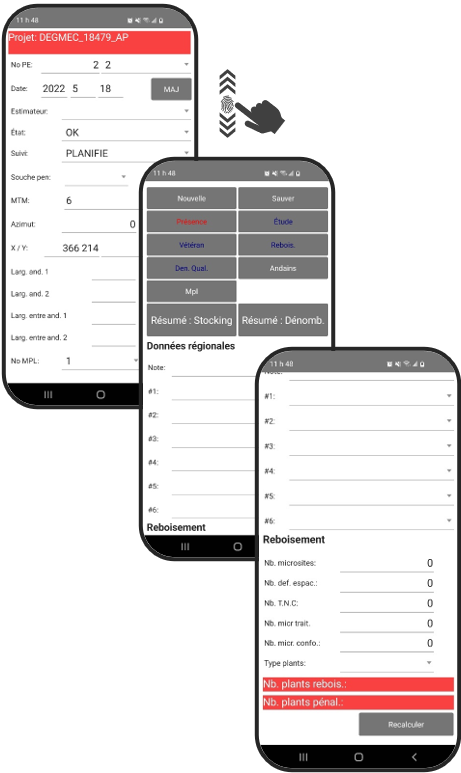
<span style="font-size: 10pt; line-height: 107%; color: rgb(0, 0, 0);">Sélectionnez d’abord un projet dans la fenêtre d’accueil principale et remplissez les informations pour définir la parcelle dans l’écran ‘Parcelle’. Pour naviguer d’une parcelle à l’autre, cliquez sur la liste déroulante du champ ‘Parcelle’. </span>

<span style="color: rgb(0, 0, 0);"><span style="font-size: 10.0pt; line-height: 107%;">Glisser votre écran </span><span style="font-size: 10.0pt; line-height: 107%;">et remplissez les informations relatives à l’identification de la PE. Notez que dans cet onglet, plusieurs éléments peuvent être identifiés en fonction de l’exigence de vos devis. </span></span>

<span style="font-size: 10pt; line-height: 107%; color: rgb(0, 0, 0);">Inscrire vos différentes données. </span>

<span style="font-size: 10pt; line-height: 107%; color: rgb(0, 0, 0);"> </span><span style="font-size: 10pt; line-height: 107%; color: rgb(0, 0, 0);">Faites « Retour » dans ces fenêtres pour retourner à la fenêtre principale de la PE.</span>

<span style="font-size: 10pt; line-height: 107%; color: rgb(0, 0, 0);"><span style="font-size: 10.0pt; line-height: 107%; font-family: 'Open Sans'; mso-fareast-font-family: Calibri; mso-fareast-theme-font: minor-latin; mso-bidi-font-family: 'Times New Roman'; mso-bidi-theme-font: minor-bidi; color: black; mso-themecolor: text1; mso-ansi-language: FR-CA; mso-fareast-language: EN-US; mso-bidi-language: AR-SA;">Remplissez selon l’exigence de vos devis les différentes fenêtres : ‘Présence’; ‘Vétéran’; ‘Dénombrement qualité’; ‘Étude’; ‘Reboisement’; ‘Andains’; ‘Micro placette’. Orhestrez la séquence dans 'Information de base' dans l'application PC. La coloration du bouton apparaitra en rouge selon l'ordre établit.</span></span><span style="font-size: 10pt; line-height: 107%; color: rgb(0, 0, 0);"><span style="font-size: 10.0pt; line-height: 107%; font-family: 'Open Sans'; mso-fareast-font-family: Calibri; mso-fareast-theme-font: minor-latin; mso-bidi-font-family: 'Times New Roman'; mso-bidi-theme-font: minor-bidi; color: black; mso-themecolor: text1; mso-ansi-language: FR-CA; mso-fareast-language: EN-US; mso-bidi-language: AR-SA;"> </span></span>

### <span lang="FR" style="mso-ansi-language: FR; mso-fareast-language: FR-CA;">Visualisation des différents écrans de compilations :</span><span lang="FR" style="mso-ansi-language: FR; mso-fareast-language: FR-CA;"> </span>

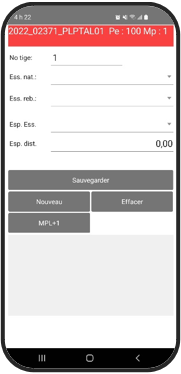
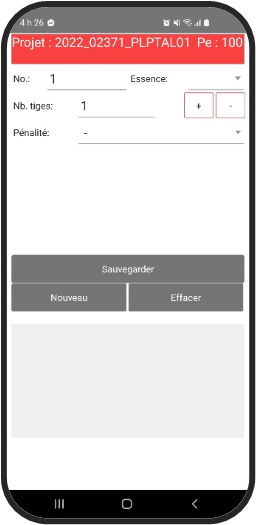
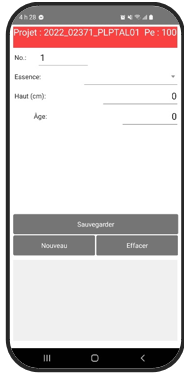
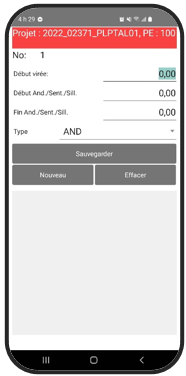
<span style="font-size: 10pt; line-height: 107%; color: rgb(0, 0, 0);">Les différents onglets présentés ci-dessous sont les fenêtres accessibles par l’écran ‘Parcelle’. L’information contenue suppose une connaissance de base en matière d’inventaire forestier, nous vous invitons à consulter également votre devis d’inventaire. Les choix déroulants contenus dans certaines cellules sont disponibles dans les paramètres ‘Information de base’ d’InvenStock PC.</span>

<table border="1" id="bkmrk-%C3%89cran-pr%C3%A9sence-%C3%89cran" style="border-collapse: collapse; width: 100%;"><colgroup><col style="width: 20%;"></col><col style="width: 20%;"></col><col style="width: 20%;"></col><col style="width: 20%;"></col><col style="width: 20%;"></col></colgroup><tbody><tr><td>##### Écran

##### Présence[![image.png](https://doc.groupesygif.ca/uploads/images/gallery/2023-04/scaled-1680-/Xs5image.png)](https://doc.groupesygif.ca/uploads/images/gallery/2023-04/Xs5image.png)

</td><td class="align-center">[##### Écran

#####  Vétéran

![image.png](https://doc.groupesygif.ca/uploads/images/gallery/2023-04/scaled-1680-/Xs5image.png)](https://doc.groupesygif.ca/uploads/images/gallery/2023-04/Xs5image.png)  
</td><td class="align-center">##### Écran Dénombrement qualité

![](https://doc.groupesygif.ca/uploads/images/gallery/2023-04/embedded-image-kvi9uvhb.png)

</td><td class="align-center">##### Écran

##### MPL [![image.png](https://doc.groupesygif.ca/uploads/images/gallery/2023-04/scaled-1680-/hswimage.png)](https://doc.groupesygif.ca/uploads/images/gallery/2023-04/hswimage.png)

</td><td>##### Écran

##### Andains

[![image.png](https://doc.groupesygif.ca/uploads/images/gallery/2023-04/scaled-1680-/MRsimage.png)](https://doc.groupesygif.ca/uploads/images/gallery/2023-04/MRsimage.png)

</td></tr><tr><td>  
</td><td>  
</td><td>  
</td><td>  
</td><td> </td></tr></tbody></table>


#####   


#####